
Older book layout
Staff today
In the older book layout, staff sign in each day and the owner adds people, sets codes and chooses tabs.
What this page is for
- Business owner
- See who is in today, add employees, set their codes and choose the tabs each person can open.
- General Employee
- Your sign-in for today, breaks and sign-out.
- Sales Staff
- Your sign-in for today, breaks and sign-out.
- Inventory Clerk
- Your sign-in for today, breaks and sign-out.
- Accountant / Payroll
- Your sign-in for today, breaks and sign-out.
Top tasks
- See who is in today
- Add an employee
- Choose tabs for a person
- Start or end a break
- Sign out
The page at a glance
Every button
What each button does, when to use it and what happens next. In the app, tap the question mark next to a button for the short version.
Sign in (clock a name)
- What it does
- Lets the owner clock a staff name in.
- When to use it
- When a person starts work but cannot sign in themselves.
- What happens
- The name shows as signed in on Staff today.
Who can use it: Business owner
Sign out (clock a name)
- What it does
- Lets the owner clock a staff name out.
- When to use it
- When that person finishes work.
- What happens
- The name shows as signed out.
Who can use it: Business owner
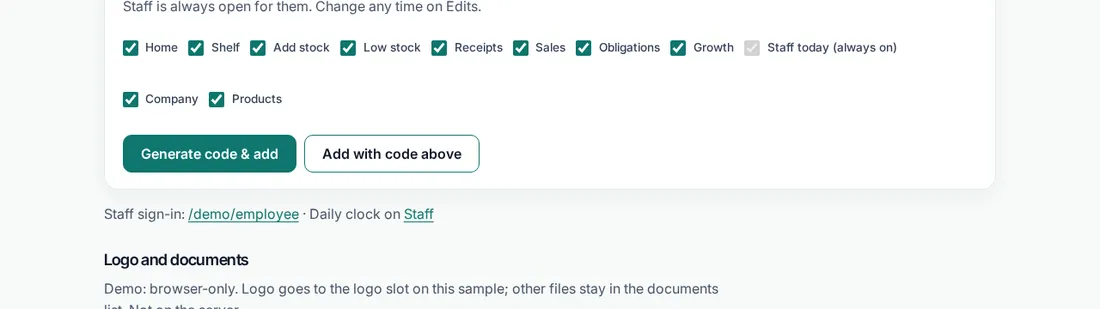
Generate code & add
- What it does
- Adds an employee and makes a new staff code for them.
- When to use it
- When someone new joins the shop.
- What happens
- The code shows once. Give it to the person yourself.
Who can use it: Business owner
Add with code above
- What it does
- Adds an employee with the code you typed.
- When to use it
- When you already agreed a code with the person.
- What happens
- The employee is added with that code.
Who can use it: Business owner
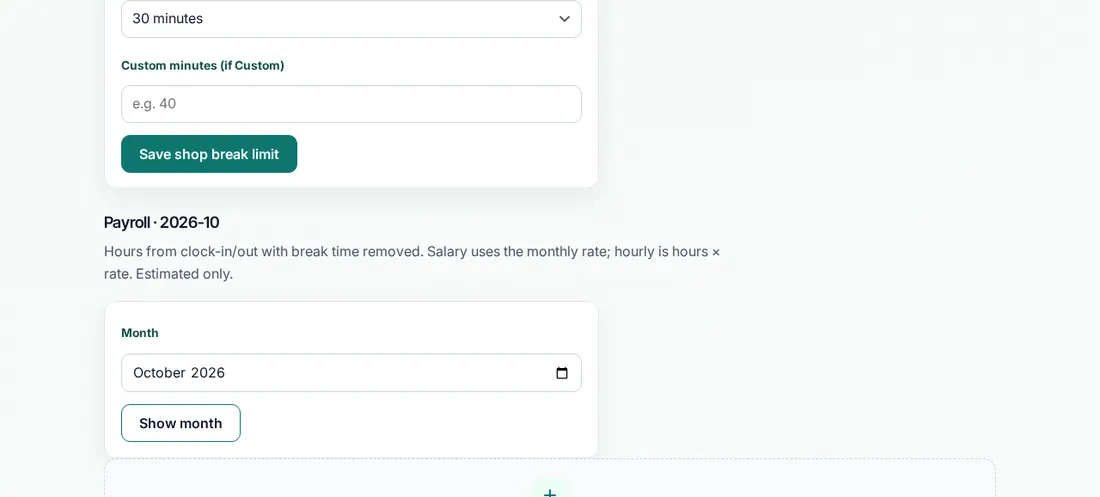
Save shop break limit
- What it does
- Sets the normal break length for all staff.
- When to use it
- When you agree a break rule for the shop.
- What happens
- A late return from break is flagged after this limit.
Who can use it: Business owner
Show month
- What it does
- Shows the payroll estimate for the month you pick.
- When to use it
- At month end.
- What happens
- Hours and pay for that month show. They are estimates only.
Who can use it: Business owner
How to
For Business owner
Add an employee
- Open Edit employees.
- Fill in the new person's details.
- Save. Write down the new code: it is shown once.
Choose tabs for a person
- Open Edits.
- Tap the person's name.
- Turn tabs on or off and save. Staff is always open so they can take breaks and sign out.
For General Employee, Sales Staff, Inventory Clerk, Accountant / Payroll
Take a break
- Open Staff.
- Start your break, and end it when you are back.
Tips
- Ask staff to use their own daily sign-in where they can.
Common mistakes
- Clocking a name in twice. Check Staff today first.
Good to know
- This layout is only on older books. Newer books show everything on one book page.
- Break tools depend on the plan.
Still need help?
Email support@masteroperationsmanagement.com. For plans and payments, email sales@masteroperationsmanagement.com.
WhatsApp: @master.ops.mgmt (opens WhatsApp)Can’t open? Search @master.ops.mgmt in WhatsApp