
Getting started
Staff sign-in
Staff sign in with the business name and their own code. Only the business owner, or MOM, can set or change a code.
What this page is for
- General Employee
- Sign in for the day with your own code.
- Sales Staff
- Sign in for the day with your own code.
- Inventory Clerk
- Sign in for the day with your own code.
- Accountant / Payroll
- Sign in for the day with your own code.
- Business owner
- Your staff sign in here with their own codes.
Top tasks
- Sign in for today
- Get help with a code
- Tell staff how to sign in
The page at a glance
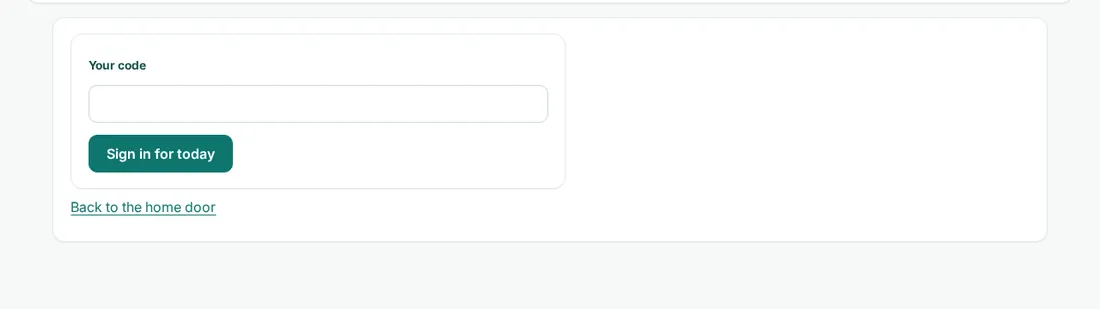
Every button
What each button does, when to use it and what happens next. In the app, tap the question mark next to a button for the short version.
Sign in for today
- What it does
- Starts your working day with your staff code.
- When to use it
- When you arrive at work.
- What happens
- Your pages for your role open.
Who can use it: General Employee, Sales Staff, Inventory Clerk, Accountant / Payroll
Sign in
- What it does
- Signs you in with the company name and your code. Capital letters don't matter.
- When to use it
- Each time you open MOM on a new device.
- What happens
- Your book opens.
Who can use it: Business owner, General Employee, Sales Staff, Inventory Clerk, Accountant / Payroll
Forgot your code?
- What it does
- Shows what to do if you lost your code.
- When to use it
- When your code does not work.
- What happens
- The steps open under the button.
Who can use it: Business owner, General Employee, Sales Staff, Inventory Clerk, Accountant / Payroll
How to
For General Employee, Sales Staff, Inventory Clerk, Accountant / Payroll
Sign in
- Go to the sign-in page.
- Type the company name and your code. Capital letters do not matter.
- Tap Sign in. The button shows Signing in… while it works. One sign-in lasts for the day.
- Shop owner with a passkey on this phone or laptop? Tap Shop owner: sign in with a passkey, just under Sign in. Your phone asks for your fingerprint, face or screen lock. Staff always use the company name and code.
Forgot your code?
- Ask your business owner to reset it.
- You cannot change your own code.
For Business owner
Help a staff member sign in
- They type the company name and their own code.
- If they forget it, reset it for them. The old code stops working.
Tips
- Sign in when you arrive and sign out for today when you leave.
Common mistakes
- Sharing your code with a colleague. Each person needs their own code.
Good to know
- Nobody can change their own code.
- When a code is changed, the person sees a notice the next time they sign in. The notice never shows the code.
Still need help?
Email support@masteroperationsmanagement.com. For plans and payments, email sales@masteroperationsmanagement.com.
WhatsApp: @master.ops.mgmt (opens WhatsApp)Can’t open? Search @master.ops.mgmt in WhatsApp