
Your team and settings
Settings
Settings hold your account, company details, team roles and privacy choices. Your logo and documents are on the Documents page.
What this page is for
- Business owner
- Manage your business details, your team's roles, and who is signed in. Your logo and documents live on the Documents page.
- General Employee
- The Station home: Sell (with sales access), Shelf and Add stock (with stock access), Clock in, Clock out, breaks and Help. Staff with no role or General Employee open it; everything else is in the owner's Master Mode.
- Sales Staff
- The Station home: Sell (with sales access), Shelf and Add stock (with stock access), Clock in, Clock out, breaks and Help. Staff with no role or General Employee open it; everything else is in the owner's Master Mode.
- Inventory Clerk
- The Station home: Sell (with sales access), Shelf and Add stock (with stock access), Clock in, Clock out, breaks and Help. Staff with no role or General Employee open it; everything else is in the owner's Master Mode.
- Accountant / Payroll
- The Station home: Sell (with sales access), Shelf and Add stock (with stock access), Clock in, Clock out, breaks and Help. Staff with no role or General Employee open it; everything else is in the owner's Master Mode.
Top tasks
- Change an employee's role
- Update company info
- Sign out every other device
- Clock in
- Clock out
The page at a glance
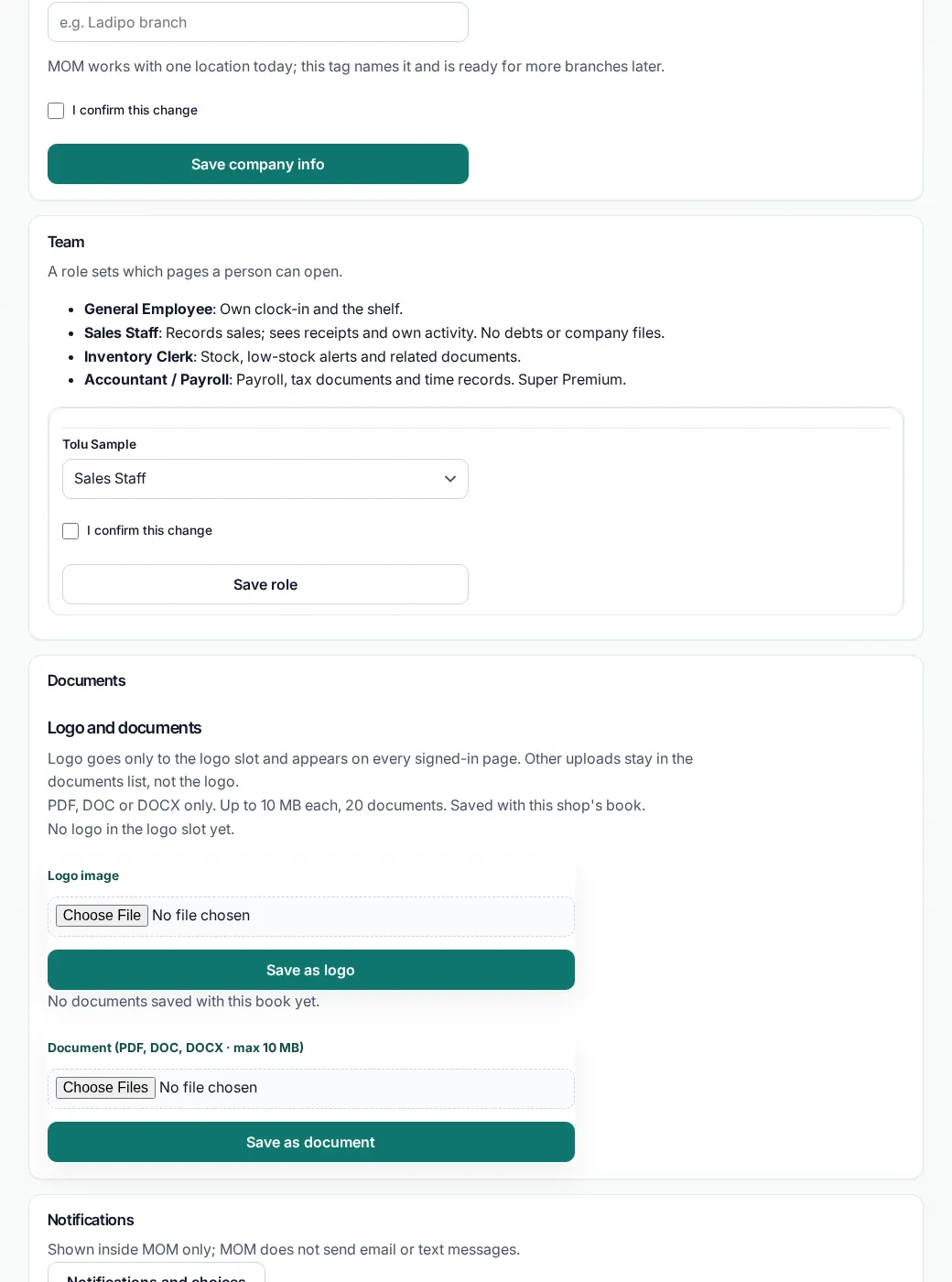
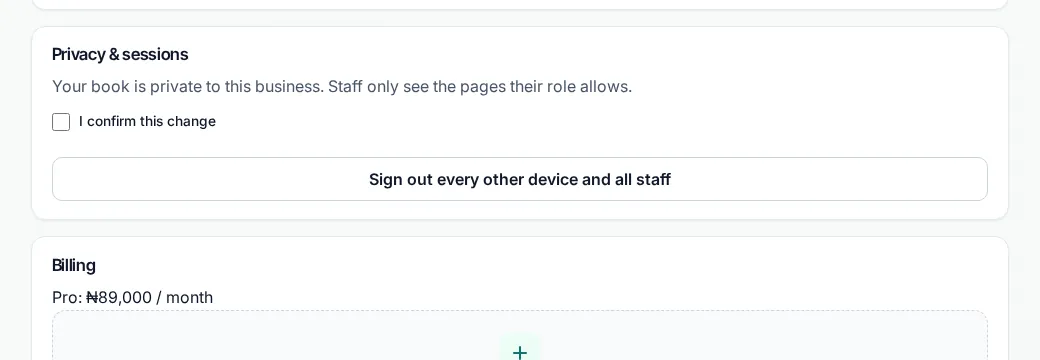
Every button
What each button does, when to use it and what happens next. In the app, tap the question mark next to a button for the short version.
Save company info
- What it does
- Saves your contact name, phone, email, address and location tag.
- When to use it
- When your shop's details change. Tick I confirm this change first.
- What happens
- The new details are saved.
Who can use it: Business owner
Save role
- What it does
- Changes what a staff member can do: General Employee, Sales Staff, Inventory Clerk or Accountant / Payroll.
- When to use it
- When a person's job in the shop changes. Tick I confirm this change first.
- What happens
- Their pages and actions follow the new role from their next page.
Who can use it: Business owner
Sign out every other device and all staff
- What it does
- Signs out every other phone or computer using this book, and all staff.
- When to use it
- When a phone is lost, or you think someone else has your code. Tick I confirm this change first.
- What happens
- Everyone else must sign in again. You stay signed in here.
Who can use it: Business owner
Sign out for today
- What it does
- Ends your working day in MOM.
- When to use it
- When you finish work.
- What happens
- You are signed out. Sign in again with your code next time.
Who can use it: General Employee, Sales Staff, Inventory Clerk, Accountant / Payroll
Notifications and choices
- What it does
- Opens the page where you choose which notices you see.
- When to use it
- When you want to change your notices.
- What happens
- The Notifications page opens.
Who can use it: Business owner, General Employee, Sales Staff, Inventory Clerk, Accountant / Payroll
How to
For Business owner
Add staff
- Open Staff and tap Add staff (Edit employees has the same button at the top).
- The Add an employee form is at the top of Edit employees: fill in the name and details.
- Tap Generate code & add. The six-digit code shows once, so write it down for them.
Change an employee's role
- Open Settings and go to Team.
- Pick the new role next to the person's name.
- Tick I confirm this change and save.
Update company info
- Go to Company info.
- Change the contact name, phone, email, address or location tag.
- Tick I confirm this change and tap Save company info.
Sign out other devices
- Go to Privacy & sessions.
- Tick I confirm this change.
- Sign out every other device. Everyone signs in again.
Master Mode and Station Mode
- Your owner sign-in is Master Mode: every page and tool.
- Staff with no role or General Employee, and no pages ticked for them in Team other than Sales, Shelf or Add stock, open the Station home: a big Sell button (sales access), Shelf (Shelf or Add stock ticked), Add stock (Add stock ticked), Clock in, Clock out, Start break / End break, Help and your note to them. Owner menus (Debts, Growth, Staff, Documents, Company and the rest) are hidden from them. Staff you ticked other pages for, or gave a role in Team (Sales Staff, Inventory Clerk, Accountant / Payroll, Manager), keep their usual menu.
- Sell starts selling in one tap: on sample books it opens the sale cart; on your book it opens a simple selling page with items, prices and Sell 1. It shows no totals, stock value, receipts, debts or other staff. MOM checks sales access on the server.
For General Employee, Sales Staff, Inventory Clerk, Accountant / Payroll
Clock in and clock out (Station Mode)
- Clock in: sign in with your six-digit code or PIN. The Station home opens.
- Sell: tap the big Sell button, then Sell 1 on each item the customer buys.
- Breaks: tap Start break, then End break. Real shops ask for your six-digit code.
- Clock out: tap Clock out at the end of your day. Clock out ends your shift.
- Sign out: tap Sign out to leave the shared screen. If you are still clocked in, MOM asks "Clock out too?". "Yes, clock out" ends your shift. "No, stay clocked in" only signs you out. When you sign in again with your code, you see "Welcome back, your shift continues."
- Forgot to clock out? Your shift closes at closing time, and the owner sees a note.
- When you clock in and out, MOM records your times for your hours and pay. Your shop owner can see them. They are kept with your shop's pay records for 6 years, then deleted. The Station screen shows this once.
Need a new code or more pages?
- Your code is set by your business owner.
- Ask them to reset it. You cannot change your own code.
Tips
- Give each person the smallest role that fits their job.
- Use Sign out every other device and all staff if a phone is lost.
Common mistakes
- Forgetting the I confirm this change box; nothing saves without it.
- Giving everyone Accountant / Payroll. It needs Super Premium and shows money pages.
Good to know
- Roles: General Employee, Sales Staff, Inventory Clerk and Accountant / Payroll. Accountant / Payroll needs Super Premium.
- Station Mode: staff with no role or General Employee and no other ticked pages get the Station home: a big Sell button with sales access, Shelf and Add stock with stock access, Clock in, Clock out, Start break / End break and Help. Owner menus are hidden. There is no selling switch. Master Mode (the owner) has everything. Same on the demo, pilot and real books.
- When you clock in and out, MOM records your times for your hours and pay. Your shop owner can see them. They are kept with your shop's pay records for 6 years, then deleted.
- Sign out leaves the shared screen and keeps you clocked in; sign in with your code to carry on the same shift. Clock out ends your shift. Shifts still open at closing time close automatically and are flagged to the owner as Auto clocked out at closing.
- Login codes are never changed from Settings. To change the owner code, ask MOM.
- Your logo and documents are no longer at the bottom of pages. Open Documents from the menu.
- Staff sign in again each shop day: the daily sign-in ends at midnight Lagos time.
- If a shift opened before the switch to Lagos time now shows as not clocked in, clock that person out and back in from Team.
- Display settings (the Settings button at the top) are the same on the website, the demo and your book: Appearance, Reading, Motion and Contrast, in cards you can read on any screen.
- Every change asks you to tick I confirm this change first.
Coming soon
- Coming soonAdding employees from SettingsSettings › Team changes the role of people already on your book. A form to add new employees there is coming soon. Until then, email support and we will help.
- Coming soonManager roleThere is no Manager role yet. The roles today are General Employee, Sales Staff, Inventory Clerk and Accountant / Payroll.
Still need help?
Email support@masteroperationsmanagement.com. For plans and payments, email sales@masteroperationsmanagement.com.
WhatsApp: @master.ops.mgmt (opens WhatsApp)Can’t open? Search @master.ops.mgmt in WhatsApp