
Super Premium tools
Sales GPS
Sales GPS shows roughly where staff sales were made. Only the business owner can see it.
Plan: Super Premium. Other plans see a sample preview and the upgrade request.
What this page is for
See the rough place (about 100 m) where each staff sale was made, while that person was clocked in.
Top tasks
- Check where sales were made
- Open a place on the map
The page at a glance
Every button
What each button does, when to use it and what happens next. In the app, tap the question mark next to a button for the short version.
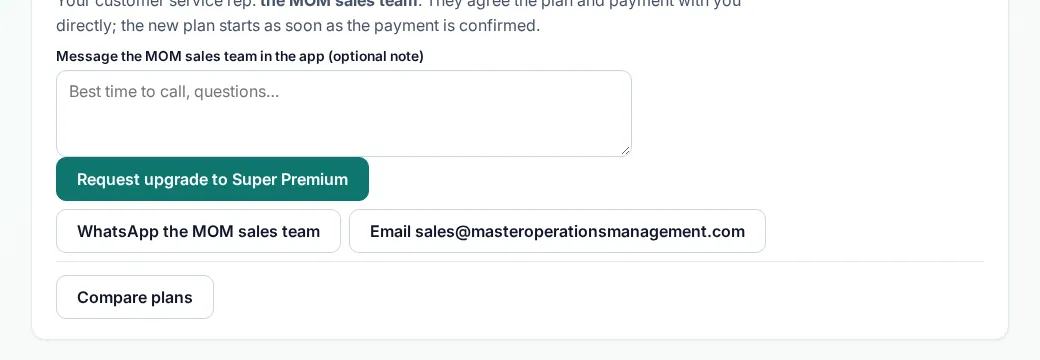
Request upgrade to Super Premium
- What it does
- Sends a request to the MOM sales team inside the app. You can add a short note.
- When to use it
- When you want the Super Premium tools.
- What happens
- The MOM sales team gets your request and contacts you. Your plan does not change until it is agreed and paid.
Who can use it: Business owner
How to
Read Sales GPS
- Open Sales GPS from the menu.
- Each row shows the sale, the staff member and the area.
- Open the map link to see the spot.
Tips
- Only the business owner sees Sales GPS.
Common mistakes
- Looking for it on a staff sign-in. Staff cannot open this page.
Good to know
- The phone asks staff first. Staff see a privacy note while they are clocked in.
- Locations are rounded to about 100 m and kept for 90 days.
- Your own sales are not tracked.
Still need help?
Email support@masteroperationsmanagement.com. For plans and payments, email sales@masteroperationsmanagement.com.
WhatsApp: @master.ops.mgmt (opens WhatsApp)Can’t open? Search @master.ops.mgmt in WhatsApp