
Your team and settings
Handovers
A handover passes a piece of work to the right person with a short note, so nothing is lost when a shift changes.
Plan: Pro: 20 handovers a month, task items only. Super Premium: no limit, plus payroll and tax items.
What this page is for
- Business owner
- See every work item in your shop, who holds it now, and move work between people.
- General Employee
- Your work list: items handed to you, and items you pass on to the next person.
- Sales Staff
- Your work list: items handed to you, and items you pass on to the next person.
- Inventory Clerk
- Your work list: items handed to you, and items you pass on to the next person.
- Accountant / Payroll
- Your work list: items handed to you, and items you pass on to the next person.
Top tasks
- Add an item to your work list
- Hand an item to someone
- Move or reverse a handover
- Open new items handed to you
- Hand an item to the next person
- Mark an item done
The page at a glance
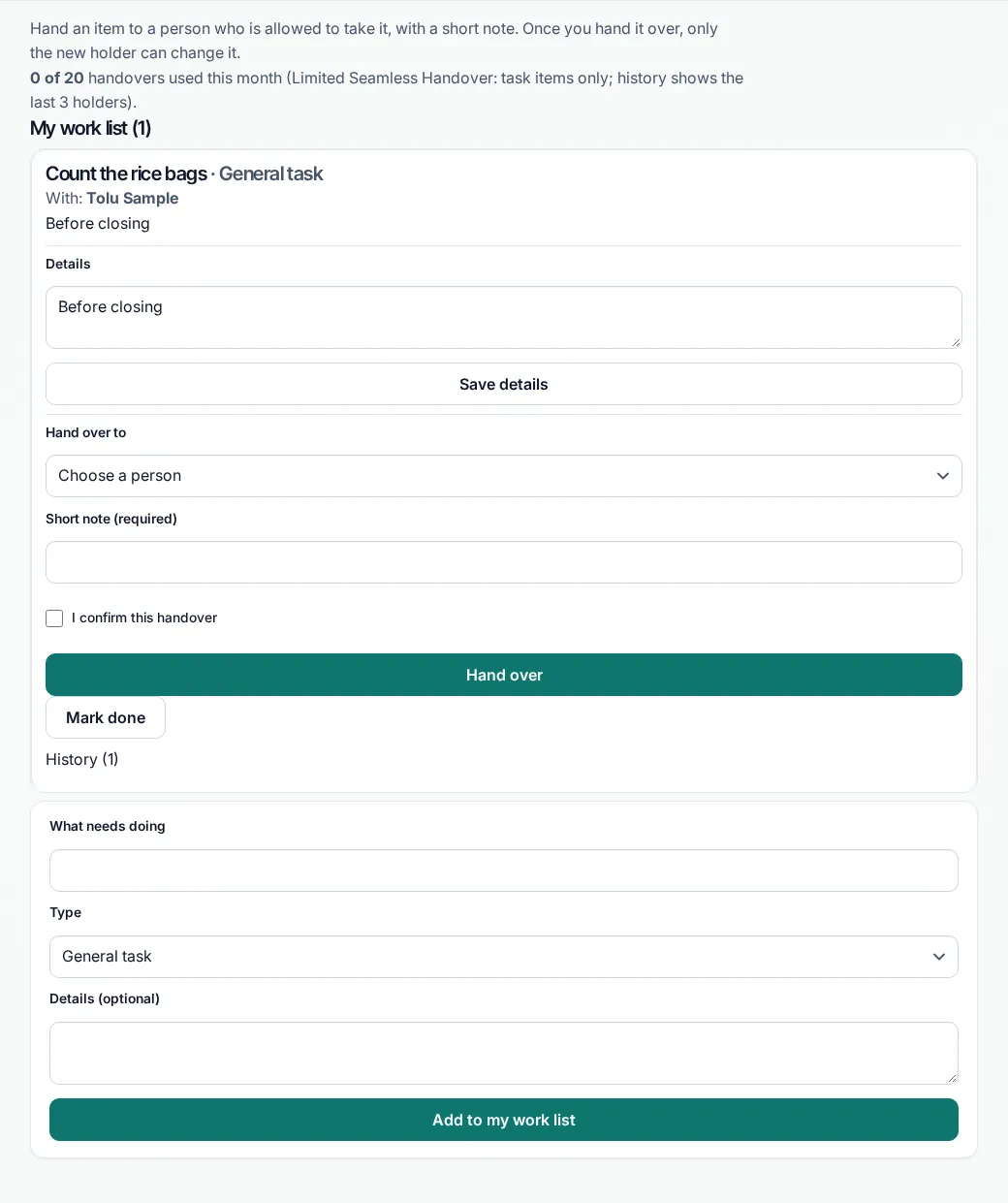
Every button
What each button does, when to use it and what happens next. In the app, tap the question mark next to a button for the short version.
Add to my work list
- What it does
- Adds a new job to your own list, with a type and optional details.
- When to use it
- When you need to remember a job, or plan to pass it on.
- What happens
- The job shows in My work list.
Who can use it: Business owner, General Employee, Sales Staff, Inventory Clerk, Accountant / Payroll
Save details
- What it does
- Saves changes to the details of a job on your list.
- When to use it
- When you have new information about the job.
- What happens
- The job keeps the new details.
Who can use it: Business owner, General Employee, Sales Staff, Inventory Clerk, Accountant / Payroll
Hand over
- What it does
- Passes the job to another person, with a short note.
- When to use it
- When someone else should finish the job, for example at the end of your shift.
- What happens
- The job leaves your list and goes to that person. It shows in History.
Who can use it: Business owner, General Employee, Sales Staff, Inventory Clerk, Accountant / Payroll
Mark done
- What it does
- Closes a job you have finished.
- When to use it
- When the job is complete.
- What happens
- The job leaves your list and shows in History as done.
Who can use it: Business owner, General Employee, Sales Staff, Inventory Clerk, Accountant / Payroll
Move it
- What it does
- Lets the business owner move any job to another person. A reason is required.
- When to use it
- When someone is away and their job must keep moving.
- What happens
- The job moves and the reason is kept in History.
Who can use it: Business owner
History
- What it does
- Shows past handovers: who passed what, to whom, and when.
- When to use it
- When you need to check what happened to a job.
- What happens
- The history list opens.
Who can use it: Business owner, General Employee, Sales Staff, Inventory Clerk, Accountant / Payroll
How to
For Business owner
Add a work item
- Open Handovers.
- Under What needs doing, type a short title.
- Pick the type and add details if you like.
- Tap Add to my work list.
Hand an item over
- Find the item in My work list.
- Pick who should take it. Only people allowed to take that type are listed.
- Write a short note (3 to 300 characters).
- Tick to confirm and send.
Move or reverse a handover
- Go to All items.
- Move an item to someone else with a reason, or reverse the last move.
- Confirm. Both are recorded.
For General Employee, Sales Staff, Inventory Clerk, Accountant / Payroll
Pick up a new item
- Open My handovers. New items show “(N new)” until you open the list.
- Read the note from the person who sent it.
Hand an item over
- Pick who should take it.
- Write a short note (3 to 300 characters).
- Tick to confirm and send. After that, only the new holder can change it.
Finish an item
- Open the item.
- Mark it done. Done items are locked.
Tips
- Write a clear short note when you hand over, for example 'Count done up to shelf 3'.
- Open History if a job seems to be missing.
Common mistakes
- Marking a job done when you only handed it on. Use Hand over instead.
- Forgetting to tick I confirm this handover; the form will not send.
Good to know
- Types: General task, Sales / customer, Stock / inventory, and Payroll / tax (Super Premium). Each role can only take the types it is allowed.
- Every item keeps a history of who held it and when. On Pro you see the last 3 holders.
- Only the people involved are told about a handover.
- Starter and Business plans do not include handovers.
Still need help?
Email support@masteroperationsmanagement.com. For plans and payments, email sales@masteroperationsmanagement.com.
WhatsApp: @master.ops.mgmt (opens WhatsApp)Can’t open? Search @master.ops.mgmt in WhatsApp